35,000+ smart investors are already getting financial news, market signals, and macro shifts in the economy that could impact their money next with our FREE weekly newsletter. Get ahead of what the crowd finds out too late. Click Here to Subscribe for FREE.
A used laptop can look like a straightforward bargain until an aging battery, unsupported operating system, hidden management lock, or costly repair changes the calculation. Canada’s second-hand market includes everything from carefully refurbished business machines to private-sale devices with little history and no practical return option. The strongest purchase is rarely the one with the lowest sticker price; it is the one whose identity, condition, security, repairability, and remaining software life can be verified before money changes hands. These 21 checks cover the details that matter most, including specifications, batteries, screens, storage, account locks, warranties, scams, and long-term value. Together, they provide a realistic way to separate a dependable workhorse from a laptop that is merely clean, inexpensive, and close to becoming someone else’s problem.
Start With the Job, Not the Bargain
21 Things Canadians Should Know Before Buying a Used Laptop
- Start With the Job, Not the Bargain
- Identify the Exact Model and Configuration
- Confirm the Software Support Runway
- Match the Processor, Memory, and Storage to Real Work
- Find Out What Can Actually Be Upgraded
- Measure Battery Health, Not Just Charge Percentage
- Treat Swelling, Heat, and Charger Problems as Safety Issues
- Inspect the Display With More Than a Wallpaper
- Test Every Key, Click, Camera, and Speaker
- Exercise Every Port and Wireless Connection
- Look Closely at Hinges, Chassis, and Liquid Clues
- Check the SSD’s Health and Actual Capacity
- Make Sure No One Else Still Controls the Laptop
- Check BIOS Passwords, Activation, and Security Features
- Use the Serial Number Before Money Changes Hands
- Ask for a Proper Reset, Then Watch the First Boot
- Judge the Seller as Carefully as the Machine
- Understand Returns and Warranties in the Province
- Know What “Refurbished” Actually Includes
- Price the Repair Before Negotiating
- Value Reuse, but Plan the Device’s Ending
- 19 Things Canadians Don’t Realize the CRA Can See About Their Online Income
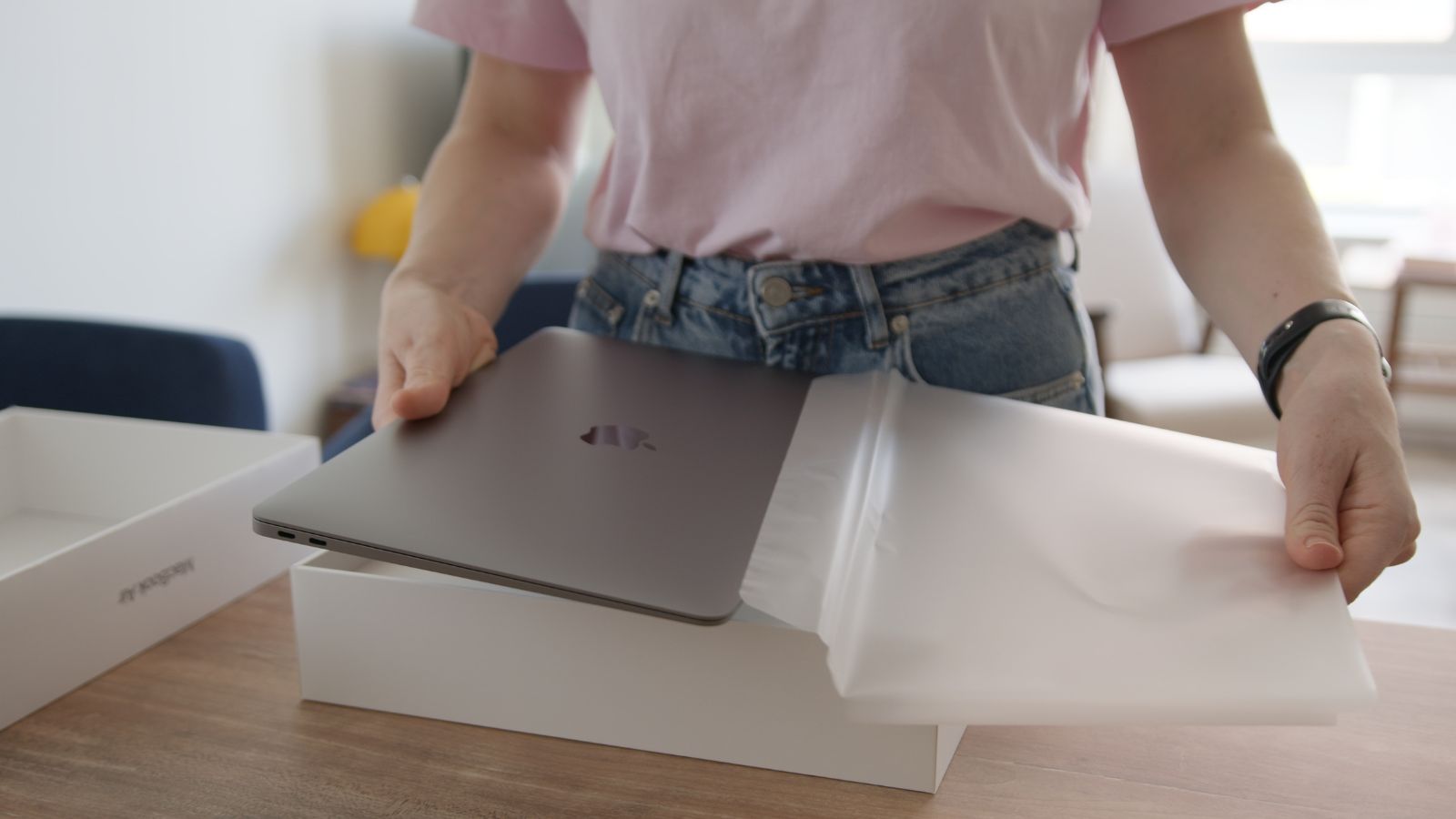
A used laptop should be judged against the work it must perform, not against the seller’s discount. Web browsing and basic documents demand far less than video editing, engineering software, gaming, or large spreadsheets. Buyers should list programs, memory, storage, display size, and essential ports before comparing listings. A machine can be inexpensive and still be poor value when it cannot run necessary software comfortably.
Total cost matters more than the advertised price. A missing charger, tired battery, small solid-state drive, damaged keyboard, or required dock can quickly erase a saving. For example, a laptop priced $150 below comparable models may not be cheaper after a battery replacement and compatible adapter are added. A sensible ceiling includes the purchase price, taxes where applicable, accessories, repairs, and a reserve for failure. That calculation also makes it easier to reject attractive listings that only work financially when every hidden assumption goes perfectly.
Identify the Exact Model and Configuration

Laptop names are reused across several years, screen options, processors, and memory layouts. “ThinkPad T14,” “Dell XPS 13,” or “MacBook Pro” is not precise enough to establish age, performance, repair options, or software support. The model code, service tag, serial number, processor name, installed memory, storage capacity, and screen resolution should match what appears inside the operating system and on the chassis.
This check prevents accidental or deliberate misdescription. Two laptops with identical shells can have different processors, displays, batteries, and upgrade paths. A seller may remember buying the device in 2021 even though the model was introduced earlier, or may list the family’s best specifications instead of the actual unit’s configuration. Photographing the information screens and comparing them with the manufacturer’s specification page creates a record. It can also reveal swapped bottom covers, incorrect chargers, replacement motherboards, or listings assembled from product descriptions rather than the machine being sold.
Confirm the Software Support Runway

Software support now determines whether many older bargains remain sensible. Microsoft ended standard Windows 10 support on October 14, 2025, so a laptop that cannot officially run Windows 11 may need extended-security arrangements or another operating system. Windows 11 requires supported hardware, including an eligible processor, Secure Boot capability, and TPM 2.0. A seller-installed copy can appear functional even when the device is officially unsupported.
Run Microsoft’s PC Health Check instead of accepting “Windows 11 installed” as proof. For a Chromebook, verify the exact model’s Auto Update Expiration date; Google’s update period is tied to the platform’s release, not the second owner’s purchase. For a Mac, compare the model identifier with Apple’s current macOS compatibility list and service status. Apple’s macOS Tahoe 26 excludes many older Intel laptops that still look modern. A low price is less impressive when security updates, application compatibility, or official repair support are already limited.
Match the Processor, Memory, and Storage to Real Work

Specifications matter when translated into real everyday performance. Processor generation matters alongside labels such as Core i7 or Ryzen 7, because model names alone do not reveal architecture, core count, efficiency, or support. Memory affects multitasking, browser tabs, creative applications, and video meetings. Storage capacity determines how quickly local files, updates, and applications turn a bargain into a space-management exercise.
8 GB of memory remains workable for light tasks, but 16 GB provides more useful breathing room for heavier browsing, office work, and longer ownership. The correct amount depends on workload, so buyers should follow the recommended requirements of essential software. Confirm that the advertised drive is an SSD rather than a slower hard drive, and verify usable capacity inside the system. A laptop with impressive headline specifications can still disappoint when its processor is old, its memory is constrained, or its 128 GB drive becomes nearly full over time.
Find Out What Can Actually Be Upgraded

Upgradeability varies even within one laptop family. Some business notebooks provide memory slots, replaceable storage, accessible wireless cards, and serviceable batteries. Other thin models solder memory to the motherboard and may use proprietary or difficult-to-replace storage. The answer comes from the exact model’s service manual, specification sheet, or a reputable teardown—not assumptions based on brand, price, or screen size.
This matters because an inexpensive 8 GB laptop is very different when memory can be doubled later. A worn battery is also less alarming when a replacement is available, reasonably priced, and straightforward to install. Buyers should check memory slots, maximum capacity, storage format, battery part number, and availability of keyboards, screens, and chargers. Repairability scores and guides provide context, but Canadian parts availability still shapes the real outcome. A laptop that cannot be economically upgraded should be purchased only when its present configuration is sufficient for the expected ownership period.
Measure Battery Health, Not Just Charge Percentage

A battery showing 100 percent charge may still hold less than its original energy. On Windows 11, the powercfg battery report compares design capacity with full-charge capacity and shows usage history. On a MacBook, System Information displays cycle count and battery condition. Apple states that many Mac notebook batteries are designed to retain up to 80 percent of original capacity at their maximum cycle count.
Battery data should be paired with a real unplugged test. Stream video, browse pages, raise screen brightness, and watch how quickly the percentage falls. Sudden drops, shutdowns under load, or a battery that remains at one percentage for a long time can indicate reporting or cell problems. Cycle count alone is not a verdict because heat, storage conditions, and age also matter. The practical question is whether the remaining runtime fits the buyer’s routine and whether replacement cost has already been included in the offer.
Treat Swelling, Heat, and Charger Problems as Safety Issues

A raised trackpad, separated panel, distorted keyboard, or chassis that rocks on a flat table can indicate a swollen battery. That is not a cosmetic defect to negotiate around. Lithium-ion battery damage and overheating can create fire or explosion hazards, and Health Canada advises charging devices according to instructions, away from heat-trapping soft surfaces. A visibly swollen laptop should not be charged or purchased for use.
Check the charger too. Its voltage, wattage, connector, and manufacturer should match the laptop’s requirements. Frayed cables, bent pins, scorch marks, heat, or an unbranded replacement are reasons to stop testing. USB-C does not guarantee that every adapter supplies enough power or supports the correct charging standard. Canada’s recall database contains laptop and battery recalls identifiable by model or serial number. A cheap machine with a bad battery or suspect charger is not a bargain; it is an electrical problem bundled with a computer.
Inspect the Display With More Than a Wallpaper

Bright promotional wallpaper can easily hide serious display problems. Buyers should open white, black, red, green, and blue screens to expose stuck pixels, pressure marks, uneven backlighting, tinting, and vertical or horizontal lines. Brightness should be adjusted from minimum to maximum while watching for flicker or sudden changes. Video can reveal ghosting, intermittent dimming, and colour shifts that static images can easily miss.
The screen should then be viewed from working angles, not only straight on. Check whether the panel specification matches the listing, including resolution, touch capability, refresh rate, and brightness class. Replacement screens vary in quality even when they fit, so an unusually dim or washed-out panel may be a lower-grade substitute. Test the webcam area for cracks and confirm that the lid closes evenly. A document user may tolerate one tiny pixel defect, while a photographer or designer may treat the same flaw as a deal breaker.
Test Every Key, Click, Camera, and Speaker

Small input failures become large daily irritations. Open a keyboard tester or editor and press every letter, number, function key, arrow, modifier, and backlight control. Repeated letters, missing strokes, sticky keys, or uneven-feeling keys may indicate liquid exposure or a worn mechanism. The trackpad should register movement, clicks, two-finger scrolling, dragging, and gestures across its surface without jumping.
Continue with the webcam, microphone, speakers, headphone jack, fingerprint reader, and any face-recognition hardware. Record a short video-call sample and play it back at several volume levels. Distortion at moderate volume can reveal damaged speakers, while a muffled microphone may point to debris or previous repair work. Manufacturer diagnostic suites from HP, Dell, and Lenovo can test keyboards, storage, memory, batteries, and system boards. Those tools do not replace hands-on everyday use, but they provide a structured second check and may produce error codes that a seller cannot dismiss as personal preference.
Exercise Every Port and Wireless Connection

A port can look perfect and still be electrically damaged or mechanically loose. Test USB-A and USB-C ports with a working device, confirm charging through supported charging ports, and check HDMI or DisplayPort output on an external screen. An SD-card slot, Ethernet jack, audio port, and Thunderbolt connection should be tested when needed. Wiggling should not interrupt power or data.
Wireless testing should include Wi-Fi, Bluetooth, and, where fitted, cellular connectivity. Connect to a network, transfer a large file, pair headphones or a mouse, and confirm stable operation several metres away. A replaced screen lid or damaged antenna cable can reduce reception though the laptop connects beside the router. Buyers should also treat port selection as a cost issue. A thin laptop with only two USB-C ports may require a dock, card reader, video adapter, and replacement charger. Those additions can turn the cheaper model into the more expensive setup.
Look Closely at Hinges, Chassis, and Liquid Clues

Hinges absorb many opening cycles and can expose structural damage. Open the lid slowly, pause at angles, and listen for cracking sounds while watching for uneven resistance, looseness, or lifting plastic. A stiff hinge can be as concerning as a loose one because it may pull threaded inserts from the case. Check that the lid is not twisted and the webcam bezel sits flush.
Inspect screws, rubber feet, vents, seams, and the underside for signs of hurried repair. Missing or mismatched screws suggest previous opening, while corrosion, sticky residue, discoloured keys, or mineral marks near ports can indicate liquid exposure. Fragrance may have been used to mask smoke or spills. Cosmetic wear is expected, but damage patterns should make sense. One corner dent may reflect a drop; matching cracks near both hinges may signal recurring stress. Ask about falls, spills, repairs, and replaced parts, then compare the answer with evidence.
Check the SSD’s Health and Actual Capacity

Storage failures can be intermittent, leaving a laptop normal during a demonstration. Confirm the drive’s model, capacity, and interface inside the operating system, then run the manufacturer’s diagnostic or a SMART utility. Warning indicators, read errors, repeated freezes, slow file copies, or a drive that disappears after restart deserve caution. A clean Windows installation cannot repair failing flash memory.
Capacity should be verified, not trusted from the listing. Sellers sometimes quote the original specification after a smaller replacement drive has been installed, and operating systems report less usable space than the marketed number because of formatting. Copying a large folder stress-tests the drive while revealing overheating or connection problems. For machines with soldered storage, drive failure can require motherboard-level repair rather than replacement. Buyers should value a healthy, replaceable SSD more highly than a larger but questionable drive, especially when the laptop will store work, school files, or irreplaceable photographs.
Make Sure No One Else Still Controls the Laptop

Account locks can turn a functioning computer into an unusable purchase. On supported Macs, Activation Lock requires the owner’s Apple Account password or passcode to disable Find My, erase, or reactivate the Mac. The seller should remove the Mac from the account and show Setup Assistant. A promise to send the password later is not acceptable evidence.
Windows laptops and Chromebooks can have organizational ties. A device registered to Windows Autopilot may reconnect to a company during setup, while a managed Chromebook can automatically re-enrol after a wipe. Macs listed in Apple Business Manager or Apple School Manager may present remote management during activation. These controls are designed to survive resets. The safest test is to erase the machine, connect it to the internet, and reach the personal setup screen before payment. Any school, employer, or organization prompt should end the transaction until the registered owner removes the device properly.
Check BIOS Passwords, Activation, and Security Features

A laptop can pass Windows tests while remaining restricted at firmware level. Restart it and enter the BIOS or UEFI setup to check for passwords, locked boot settings, disabled ports, or ownership tags. Confirm that Secure Boot and TPM 2.0 are available for Windows 11. A firmware password that the seller cannot remove can block installation, hardware changes, or troubleshooting.
Windows activation should be checked in Settings, not inferred from appearance. A genuine digital licence reports Windows is activated, while an unlicensed or improperly transferred installation may later demand a product key. Confirm that BitLocker recovery information will not remain tied to the seller’s account, and ensure the buyer can create an administrator profile. Fingerprint and facial-recognition features should be reset and enrolled again. These checks take minutes, yet they separate a transferable personal computer from a device that still depends on credentials, licensing, or policies belonging to someone else.
Use the Serial Number Before Money Changes Hands

The serial number or service tag confirms more than identity. Official manufacturer support pages may reveal the configuration, warranty, service history, parts, and manuals. Apple’s coverage checker can identify a serial-numbered product, while business-laptop manufacturers often use service tags to display the official support record. The number on the chassis should match the number reported by the operating system.
Check it against recalls and the seller’s paperwork. Health Canada notices have covered specific MacBook Pro, Lenovo, Fujitsu, and other laptop batteries or models, often with eligibility determined by serial or product number. A missing, altered, or unreadable identifier makes warranty and recall verification harder and raises questions about ownership or rebuilt parts. Ask for a receipt or bill of sale recording the model, serial number, date, price, seller identity, and disclosed defects. That is valuable if the configuration was misrepresented or the device later proves difficult to register or service.
Ask for a Proper Reset, Then Watch the First Boot

A seller’s desktop cannot prove transferability. Saved accounts, malware, and temporary fixes may remain. The seller should back up data, sign out, remove account locks, and perform the manufacturer’s recommended erase or factory-reset process. Apple directs sellers to erase the Mac and remove it from their account before transfer, while Google provides a Powerwash process for Chromebooks.
The buyer should watch the first boot after reset and connect the laptop to the internet. The machine should reach region, language, network, and account setup screens without demanding the former owner’s password or an organization’s credentials. This step reveals whether storage can complete a reset and whether the operating system activates. After purchase, install updates and applications from trusted sources rather than preserving the seller’s image. A clean beginning protects both parties: the seller’s privacy is preserved, and the buyer receives a system whose ownership and software state are easier to verify.
Judge the Seller as Carefully as the Machine

A convincing laptop cannot redeem a suspicious transaction. Review the seller’s history, ratings, listings, and willingness to answer questions. Generic photos, urgency, no serial number, or a price far below comparable machines should trigger caution. The Competition Bureau warns that merchandise scams use offers appearing too good to be true and recommends dealing with reputable sellers.
For shipped purchases, keep payment and communication inside the platform and read its buyer-protection rules. The Competition Bureau advises against moving deals outside auction sites and notes that credit cards may provide protection for online purchases. For local sales, meet in a safe public location with power and internet access, allow enough time for testing, and obtain a written bill of sale. Never send a deposit merely to hold a common laptop without meaningful protection. A legitimate seller may prefer efficiency, but should not object to reasonable verification of identity, condition, ownership, and payment.
Understand Returns and Warranties in the Province

Canadian buyers should not assume every used laptop has a cooling-off period. Federal consumer guidance states that businesses need not accept returns unless goods are defective, although retailers may create policies. Provincial rules differ, and protection may depend on seller type, location, promises, and misrepresentation. Merchant policies should be requested before payment.
Written terms matter. Ask a refurbisher or retailer for the return window, restocking fees, warranty length, covered components, battery thresholds, shipping responsibility, and repair process. Ontario says there is no general legal right to return or exchange goods, while Quebec provides automatic legal warranties for electronic devices, including used goods, with age and wear considered. “As is” does not always erase statutory obligations when a business sells consumer goods, but private transactions can be harder to resolve. Keep the advertisement, messages, receipt, diagnostic results, and photos because those records establish what was represented at the time of sale.
Know What “Refurbished” Actually Includes

“Refurbished” is not a universal condition grade. One seller may replace batteries, test components, sanitize it, install licensed software, and provide a warranty. Another may wipe the drive and exterior. Buyers should request the grading standard, test checklist, battery-health minimum, parts-replacement policy, cosmetic definitions, and identity of the refurbisher instead of treating the label as proof.
A reputable refurbisher can justify a higher price through documentation, returns, support, and consistent testing. Private sellers may offer better prices and ownership history, but provide less recourse. The strongest listing explains defects plainly and distinguishes original, compatible, and used replacement parts. On newer Macs, Parts and Service History in macOS Tahoe can show certain repairs and whether major parts are genuine or unknown. Whatever the source, compare the final price with other used machines and new entry-level models. A small saving may not compensate for a weaker battery, shorter warranty, or uncertain repairs.
Price the Repair Before Negotiating

Visible defects should be priced realistically before an offer. Search exact battery, keyboard, screen, charger, fan, and SSD parts, then add labour, shipping, taxes, and risk for additional damage. A $40 replacement component can become a larger repair when the keyboard is fused to the top case or the display must be replaced as an assembly.
Availability matters as much as price. Apple says hardware service and parts are available for at least five years after last distribution, possibly longer, subject to availability, while obsolete products lose normal hardware service. Other brands may have third-party parts for popular business models but little support for short-lived consumer variants. Obtain a local repair estimate for significant defects. Negotiation should reflect the expected cost, not the cheapest online part. If the seller insists the repair is simple and inexpensive, it is reasonable to ask why it was not completed before listing the laptop.
Value Reuse, but Plan the Device’s Ending

Buying used can extend computer life and reduce discarded electronics. The Government of Canada encourages reuse, repair, donation, and responsible recycling to reduce electronic waste. Shared Services Canada reported that, as of March 31, 2026, it had responsibly disposed of 138,000 pieces of IT equipment since 2024 and recycled 86,912 pounds of e-waste, showing the scale of device turnover.
Environmental value depends on continued usefulness. An unsupported, unrepairable machine with a failing battery may quickly become waste, while a serviceable business laptop can provide years of work. Before purchase, identify an electronics-recycling program and decide what will happen to the battery and device at end of life. Remove personal data before resale or recycling, and never place lithium-ion batteries in ordinary household waste. The best used-laptop purchase is economical and durable: supported software, replaceable wear parts, sufficient performance, and a realistic path to reuse or recycling when service finally ends.
19 Things Canadians Don’t Realize the CRA Can See About Their Online Income

Earning money online feels simple and informal for many Canadians. Freelancing, selling products, and digital services often start as side projects. The problem appears at tax time. Many people underestimate how much information the CRA can access. Online platforms, banks, and payment processors create detailed records automatically. These records do not disappear once money hits an account. Small gaps in reporting add up quickly.
Here are 19 things Canadians don’t realize the CRA can see about their online income.
This Options Discord Chat is The Real Deal
While the internet is scoured with trading chat rooms, many of which even charge upwards of thousands of dollars to join, this smaller options trading discord chatroom is the real deal and actually providing valuable trade setups, education, and community without the noise and spam of the larger more expensive rooms. With a incredibly low-cost monthly fee, Options Trading Club (click here to see their reviews) requires an application to join ensuring that every member is dedicated and serious about taking their trading to the next level. If you are looking for a change in your trading strategies, then click here to apply for a membership.